Resurrecting iChat Audio and Video Conferencing
tl;dr
Add this to your /etc/hosts file on your old Mac running Leopard or Show Leopard (has not been tested on Tiger or Panther), and iChat should be able to make audio and video calls again. This assumes your router does port-preserving NAT (most do).
157.230.2.213 configuration.apple.com
Do note that if you are on a BSD based router like pfSense or OPNsense, you will need to enable source port preservation in your outbound NAT settings.
iChat AV and The iSight
I used to be the most annoying kind of Apple zealot. In the early 2000s, I thought everything Apple had was better than anything else out there whether it was true or not. There was one place that it was true, however, and that was in the realm of video and audio conferencing in the early 2000s.
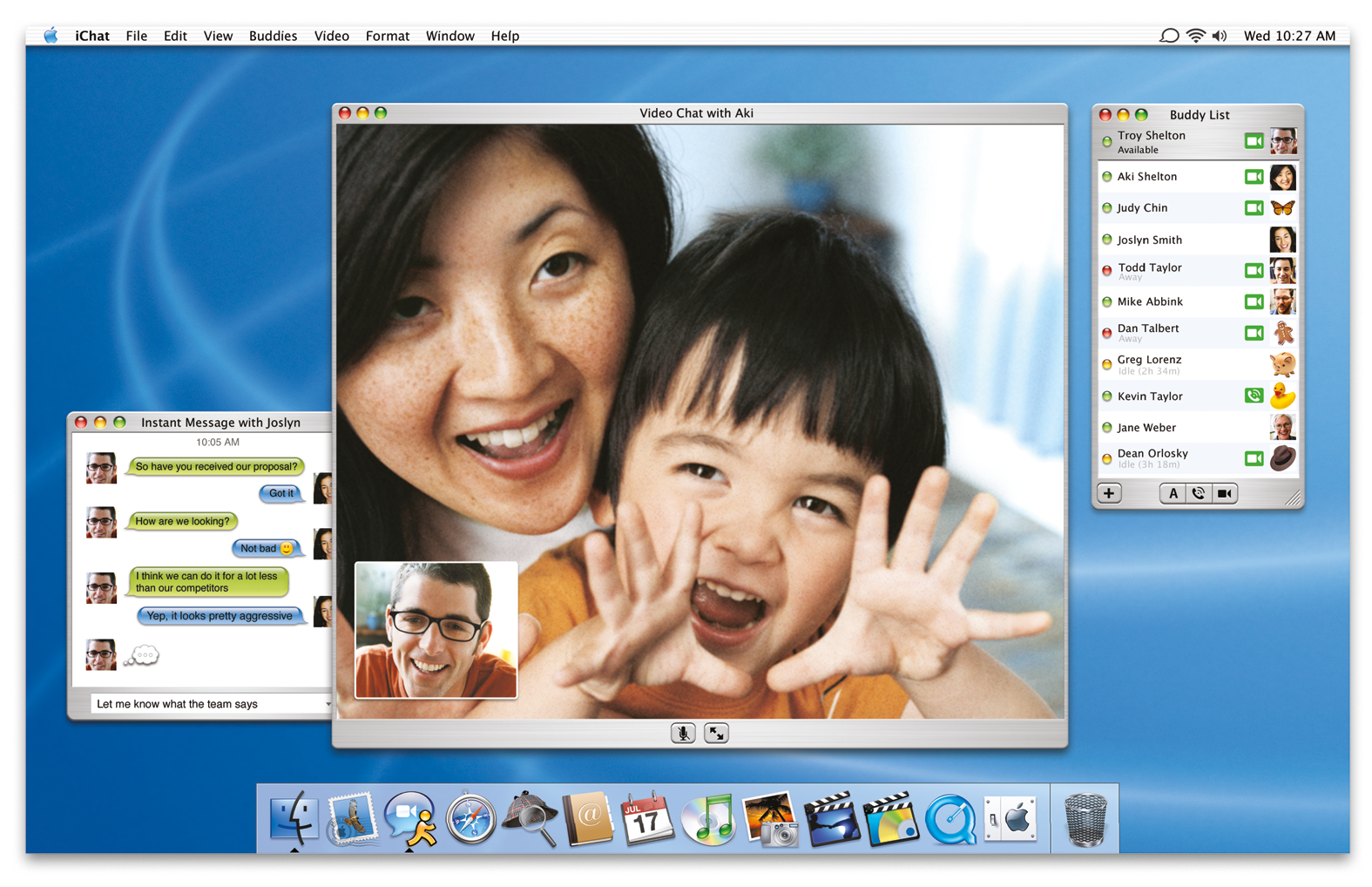
The big players for consumer level video conferencing at the time were Microsoft with MSN Messenger, Yahoo! with Yahoo! Messenger, and AOL with AOL Instant Messenger (AIM). Then at Apple's World Wide Developer Conference (WWDC) in June of 2003, along with the G5 processor and OS X 10.3 panther, Apple announced "iChat AV".
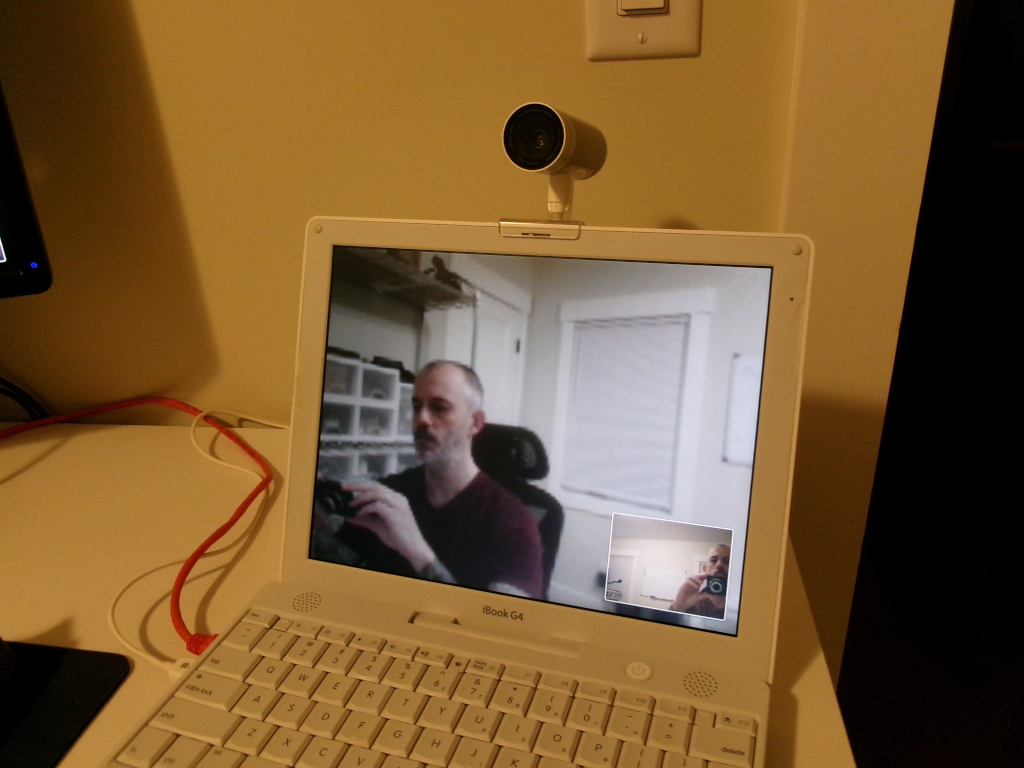
They also announced this gorgeous over-engineered webcam to go along with it called the "iSight".
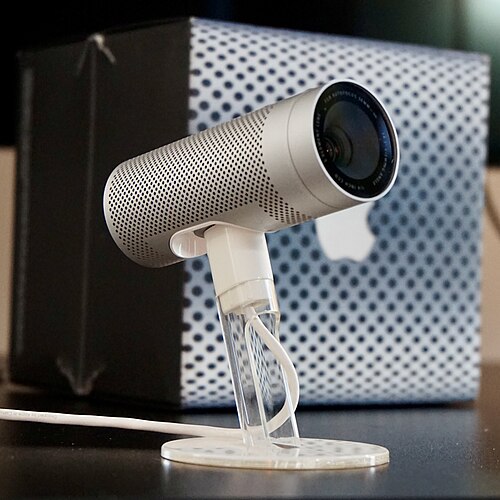
I actually had a G4 laptop and an iSight. It felt like living in the future and I loved it. This post is about how I got iChat's video conferencing on early OS X working over the Internet again to relive some of that fun.
The First Attempt
In early 2023, my friend (will be referred to as "Methodius") and I decided to just try it and see what would happen. We tried to test a simple iChat audio call on OS X Leopard. That version of iChat works with XMPP (Jabber) servers, so we each set it up with an account on jabb.im, and pressed the green call button. It rang for the other party, it said it was trying to connect, and then...failed to connect.
It's never that easy.
iChat Debugging and Inspecting The Network
Time to do some traffic inspection with tcpdump. Thankfully, that comes pre-installed on OS X from back then so I didn't have to install anything extra. Along with the packet inspection, I also ran iChat in debug mode by launching it in the terminal like this:
/Applications/iChat.app/contents/MacOS/iChat -errorLogLevel 7
iChat's debug mode was very helpful and barely documented anywhere, so now it lives here if I ever need to look it up again.
What's Supposed to Happen
- iChat makes an http request to
http://configuration.apple.com/configurations/macosx/ichat/1/snatmap.txtto get the address of an SNATMAP server. - iChat makes a UDP request to that SNATMAP server to get its own public IP address.
- iChat on both ends then exchanges their public IPs and ports via their text communication channel (XMPP in our case).
- iChat on both ends then attempts to set up a peer-to-peer RTP connection by blasting packets to each over over the public IPs and ports previously discovered via the SNATMAP server. Since NAT connections are stateful, and outbound NAT connections open an inbound connection to the machine making the request, iChat behind NAT routers are able to connect with each other without the need to set up NAT port forwarding ahead of time.
What Actually Happened
- iChat attempted to make an http request to
http://configuration.apple.com/configurations/macosx/ichat/1/snatmap.txtbut got redirected to https which it could not connect to because OS X's TLS suite is too old. - iChat failed to complete that request, so instead of exchanging our public IPs, they exchanged private LAN IPs instead, which obviously failed to connect over NAT.
The https URL is still up at the time of writing this, however, and actually contains something!
snatmap://snatmap.apple.com:5678
OK, NP. I set up my own simple web server, hosted that file myself, update OS X's /etc/hosts file to point configuration.apple.com to an IP of my choosing. Ran it and...still nothing.
Apple's SNATMAP server doesn't respond anymore. At this point, we were at a dead end because we had no idea how this SNATMAP server worked or how iChat expects to communicate with it. We learned a lot but ended in failure.
Several Years Later
Methodius and I decide to try again in summer 2026, but this time with a little LLM assistance. With our prior network captures, we were able to use an LLM to reverse engineer iChat's video conferencing framework and figure out what the request to the SNATMAP server looks like and what iChat expects as a response. From that, we were able to generate a specification file of the SNATMAP protocol.
Even though I didn't have the know how to decompile iChat, read the assembly code, and them make sense of it, I can at least learn how to write a simple UDP server from the spec file the LLM generated.
Baby's First Server
I'm a systems engineer and admin by trade. I install and configure servers, but I've never written a server of my own before. Turns out, this SNATMAP server made for a great first server to practice with.
The protocol:
- Communicates over UDP on port 5678
- The request packet contains four fields in 16 bytes.
- Type ("1" for request)
- Nonce (random number used to match a request with a response)
- client local IP (unused)
- client local port (unused)
- The response packet contains four fields in 16 bytes
- Type ("2" for response)
- Nonce (the same random number from the request)
- External IP from the UDP request
- The external port from the UDP request
Links for the spec file and source code to the SNATMAP server are at the end of this post
Testing The Results
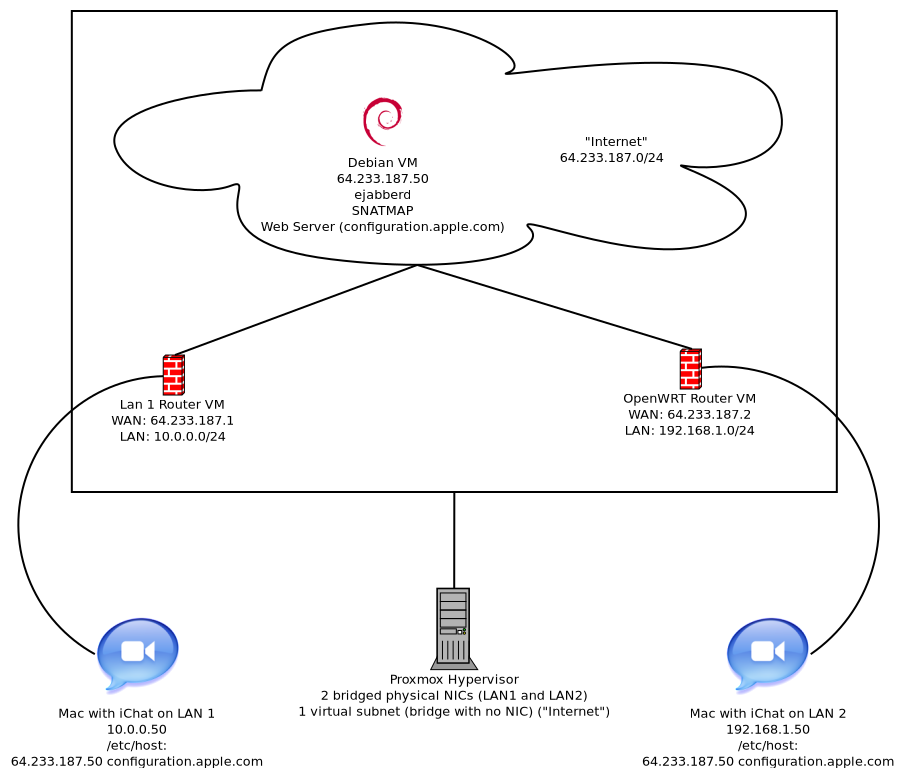
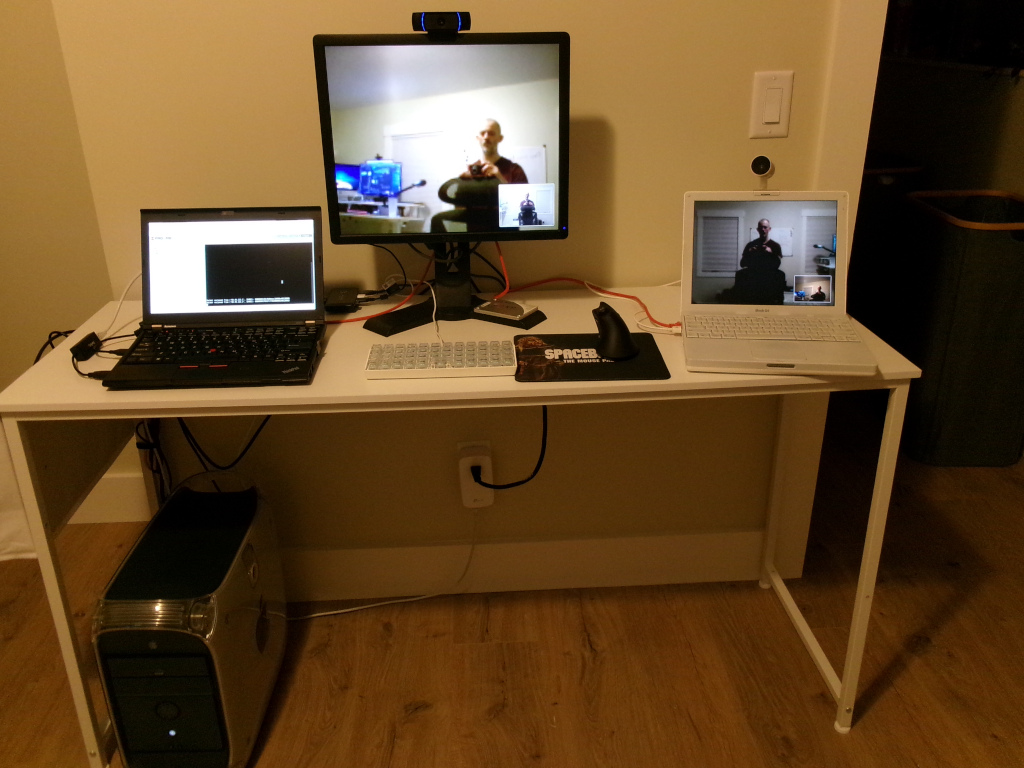
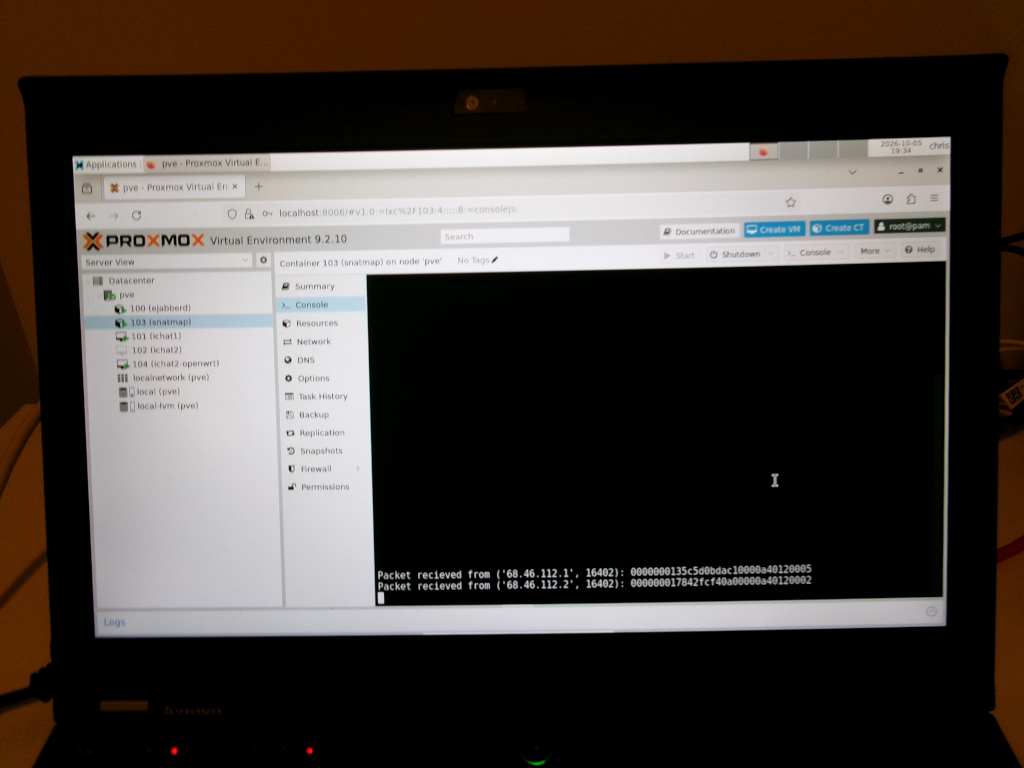
Since Methodius has kids and, as a result, has much less free time than I do, I needed a way to test how iChat works across the Internet by myself. Since I don't have two separate ISP connections to play with, I decided to build an "Internet" in a lab. This was achieved by running two NAT routers (OpenWrt) as virtual machines running on a KVM host (Proxmox) that traversed a flat network space acting as the "Internet". Then I physically hooked two Macs up to the physical KVM host (via USB NICs) where the VM routers assigned them IP addresses in their own private LAN behind a NAT. Then on the "Internet" network, I had the Jabber (ejabberd), web (lighttpd), and SNATMAP servers running in a Debian Linux VM.
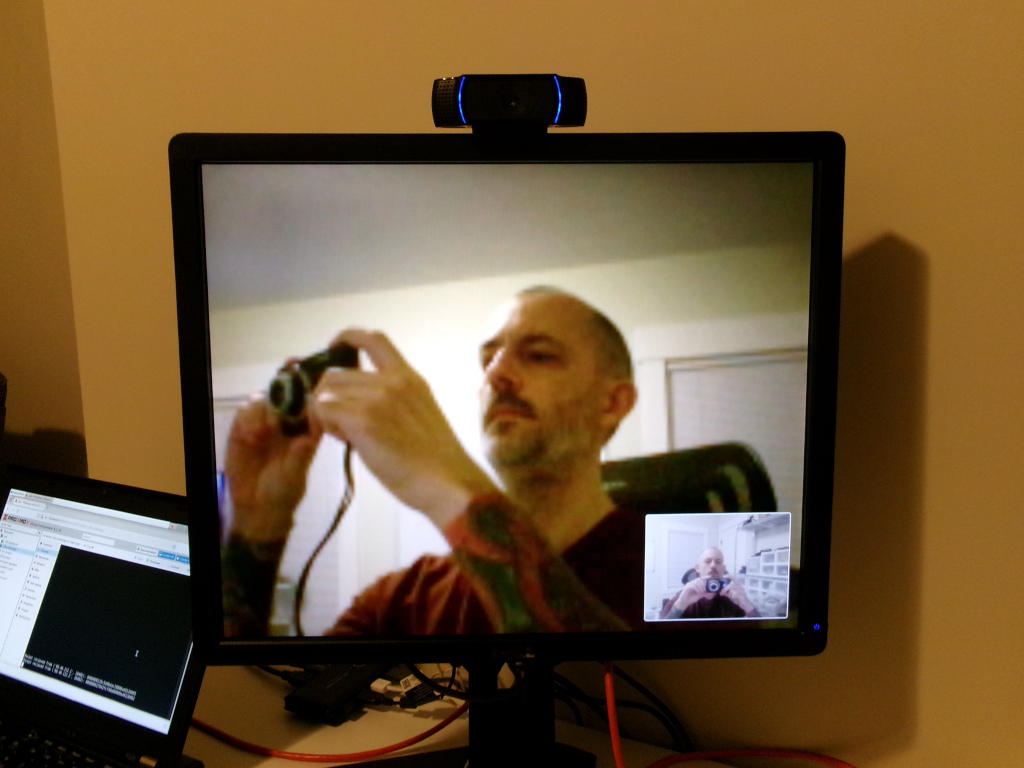
Here it is diagrammed with pictures of the physical setup with the Proxmox Server (the Thinkpad laptop) and the two Macs hooked up to it.
With this, I was able to test and iterate quickly.
The Spec and Source Code
The spec file can be used to create your own version of the server if you so desire. The source code was hand written in Python from the spec file and is ready to run on just about any OS that can run Python 3.
Self Hosting
If you wish to self host, be sure you have a web server configured to answer requests to configuration.apple.com and have it serve snatmap.txt from the path
/configurations/macosx/ichat/1/snatmap.txt
In snatmap.txt make it contain
snatmap://YOUR_SERVER_IP:5678
replacing YOUR_SERVER_IP with the public IP address of the server the SNATMAP server is running on.
The Easy Way
Or you can just use my server! I keeping it running for the 1-5 people left in the world that want to video chat using the ancient software. :D
On your old mac running OS X Leopard or Snow Leopard (might work on older but not tested), just enter this into your /etc/hosts file.
157.230.2.213 configuration.apple.com
Then have the friend you want to call do the same. After that, mash that green call button!
You Don't Need an iSight
It's true! You can even use a fairly modern Logitech webcam. I tested on OS X Leopard with a Logitech C920.
The End Result
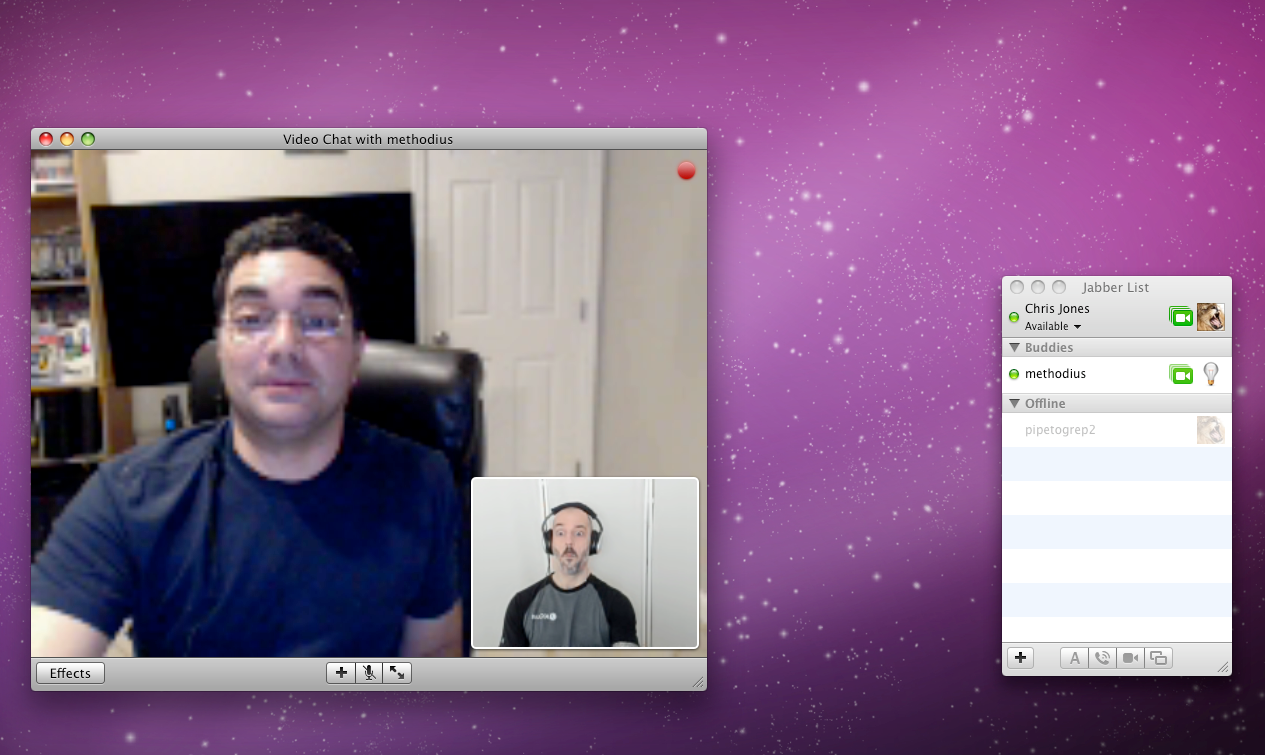
Here is a screenshot of Methodius and I chatting over the real Internet with iChat AV.
Enjoy and happy chatting!